
Settings Dialog
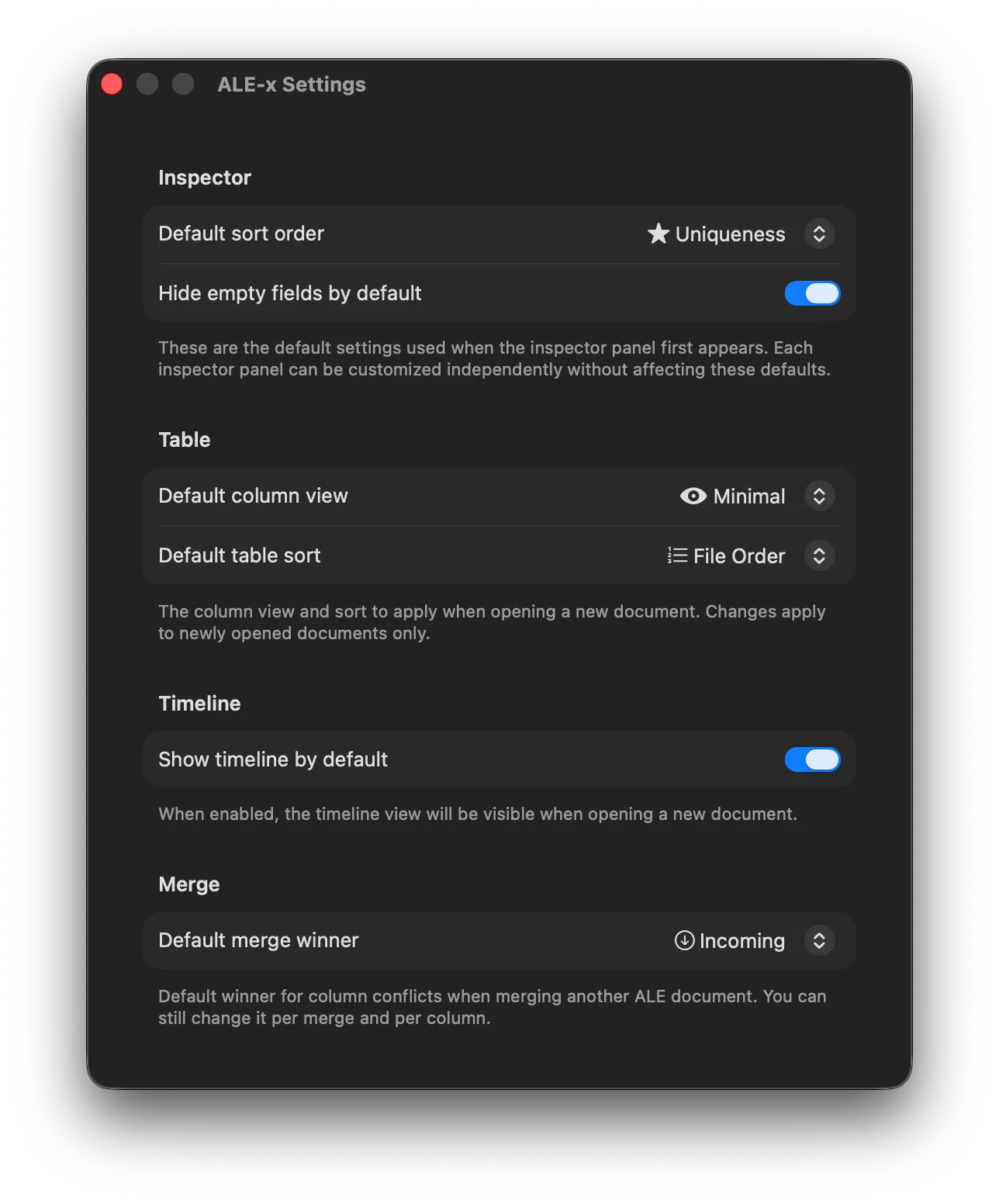
Configure default inspector, table, and timeline behavior for newly opened documents.
Use the settings dialog to choose app-wide defaults that are applied when you open a new document.
To open it, use ALE-x > Settings... from the menu bar or press Cmd+,.
Inspector Defaults
Section titled “Inspector Defaults”- Default sort order: Choose how fields are ordered when the Selection Inspector first appears:
- Uniqueness
- View Order
- Alphabetical
- Hide empty fields by default: Controls whether empty values are hidden when the inspector opens.
These are defaults only. You can still change sorting and visibility from each inspector panel without changing global defaults.
See how these controls behave in Selection Inspector.
Table Defaults
Section titled “Table Defaults”- Default column view: Choose which column view to apply when opening a new document:
- All Columns (default) — shows every column in the file
- Any saved view (e.g. Minimal) — applies that view’s column visibility and ordering
- Default table sort: Pick the initial sort behavior for newly opened documents:
- File Order
- Name
- Start
- End
- Tape
- Ascending order: Available when sorting by a column (not
File Order).
Changing table defaults affects newly opened files. You can always change column visibility or sort order per document.
Related behavior is covered in Column Operations.
Timeline Defaults
Section titled “Timeline Defaults”- Show timeline by default: Opens new documents with the timeline visible.
For timeline controls and navigation, see Timeline Visualization.