
ALE Merge
Merge another ALE file into the currently open document with smart matching and conflict resolution.
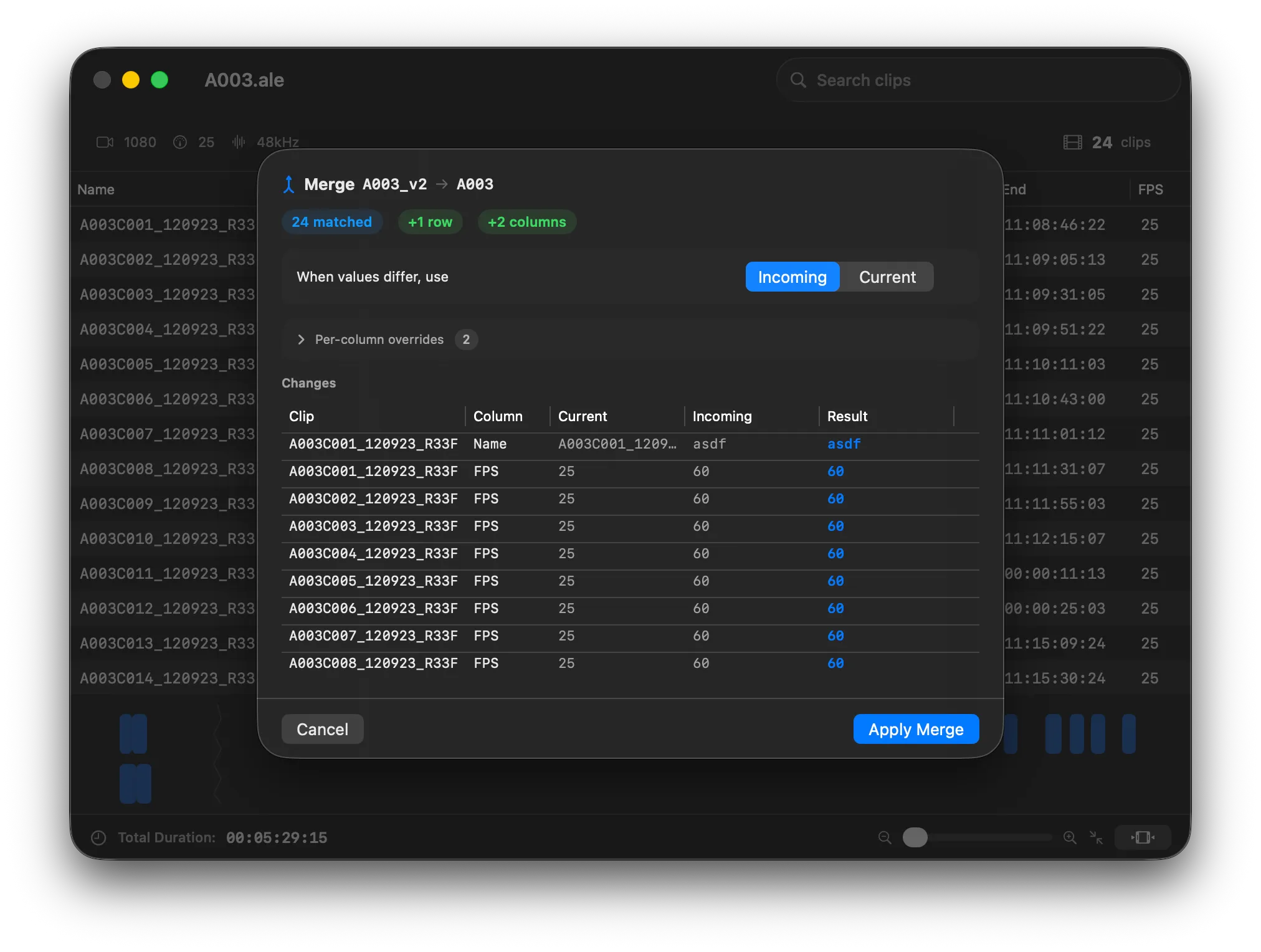
ALE Merge lets you combine two ALE files into one. Open the document you want to update, then merge another file into it. Rows are matched automatically and you control how conflicts are resolved.
Getting started
Section titled “Getting started”- Open the ALE file you want to keep as the base (the “current” document).
- Choose File → Merge ALE into Current… or press
Cmd+Shift+M. - Select the incoming ALE file.
- Review the merge summary and apply.
How rows are matched
Section titled “How rows are matched”Rows are paired by Tape name. When multiple rows share the same Tape, Start and End timecodes are used to disambiguate. Rows that exist only in the incoming file are appended. Rows that exist only in the current file are kept as-is.
Conflict resolution
Section titled “Conflict resolution”When both files have a non-empty value for the same cell and the values differ, ALE-x needs to know which one wins. Conflicts are resolved per column:
- Default winner — Choose “Incoming” or “Current” as the default for all columns. The default is configurable in Settings and can be changed for each merge.
- Per-column overrides — Override the default for individual columns when needed.
Cells that are empty in one file and filled in the other are automatically populated — no decision required.
Live preview
Section titled “Live preview”Before applying, the merge dialog shows a preview of every cell that will actually change in your document. Switching the winner for a column updates the preview instantly.
Columns and headings
Section titled “Columns and headings”Columns that exist only in the incoming file are added to the current document. Heading fields (like VIDEO_FORMAT or AUDIO_FORMAT) follow the same conflict resolution rules.
See also: Import/Export, File Management, and Keyboard Shortcuts.